Parental control for Windows PCs · Public beta

Calm, clear limitsfor your child's PC.

Lock the screen, block games and websites, and set a bedtime the PC keeps by itself — from your browser, your Windows PC or your Android phone. Rules keep working even when the PC is offline.

  • Windows child PCs
  • Web, Windows & Android parent apps
  • Cloud or private Direct mode
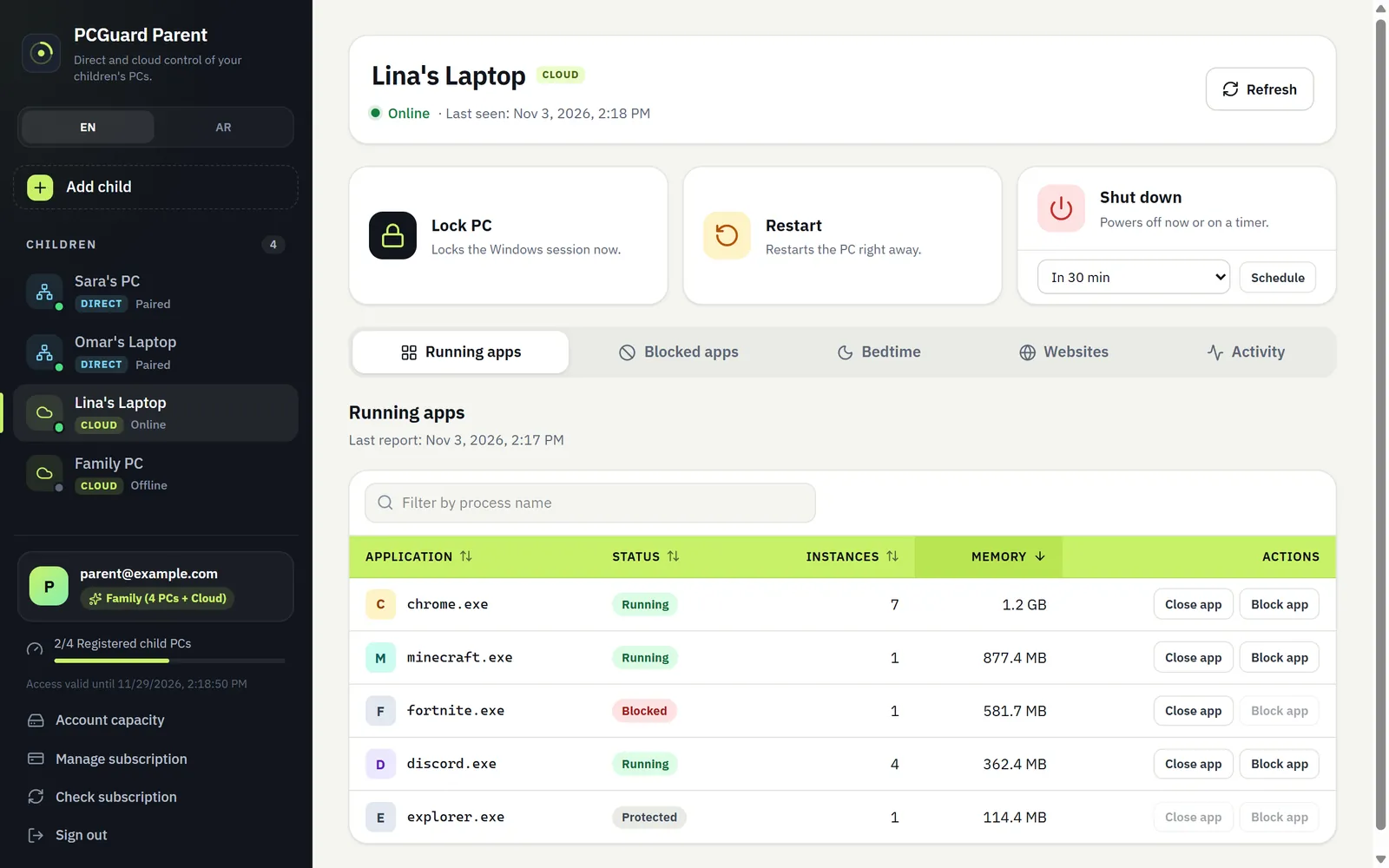
PCGuard Parent for Windows showing Lina's Laptop: Lock, Restart and Shut down tiles above a list of running apps with Close and Block buttons.
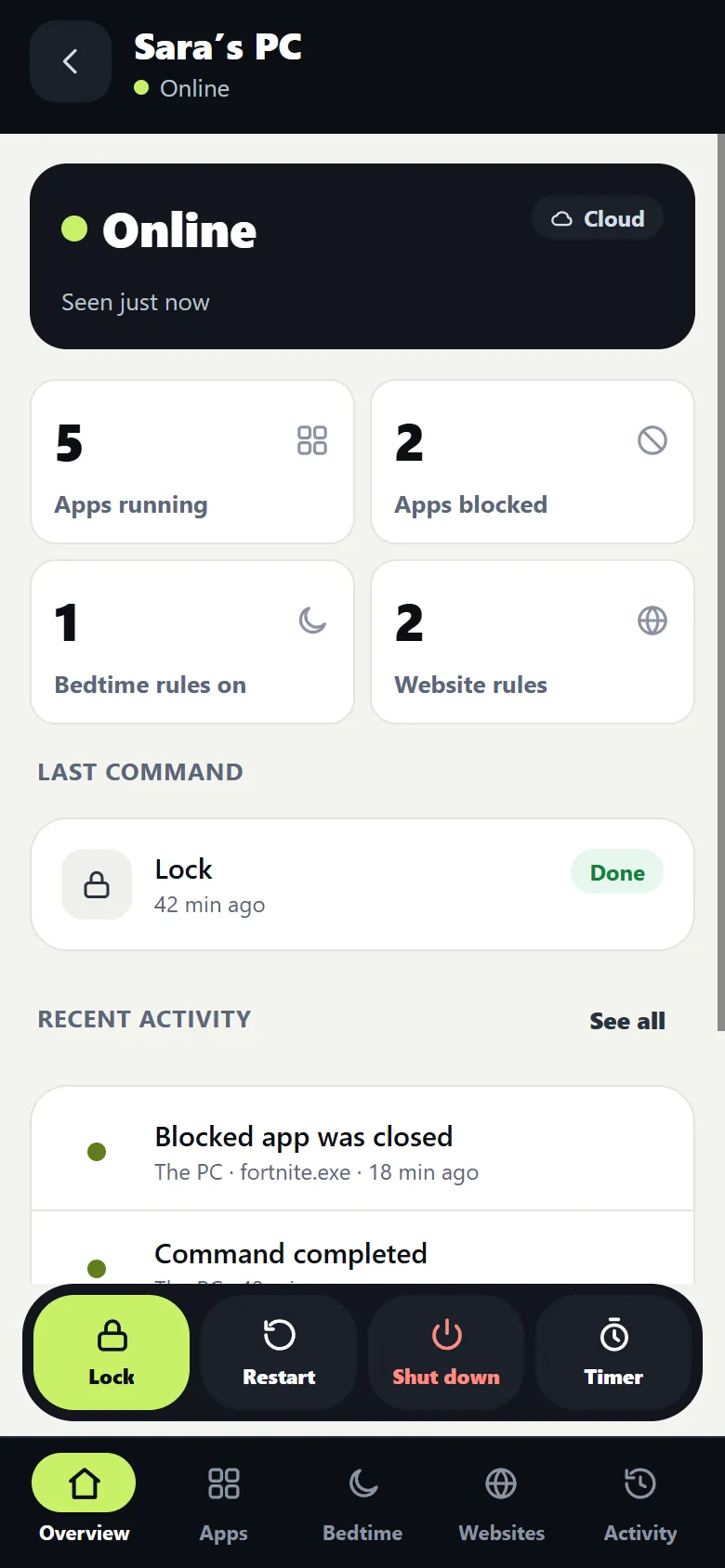
PCGuard Parent for Android showing Sara's PC online, with counts of running and blocked apps and a Lock, Restart, Shut down control dock.
Real app screens with sample data.

One family of apps

Everything a parent needs. One quiet app on the child's PC.

Manage from whichever screen is closest. Every parent app talks to the same child PC and shows the same rules.

Windows desktop app

PCGuard Parent for Windows

A desktop control room that holds both Cloud and Direct children in one list, with screen-time reports for Direct PCs.

  • Cloud and Direct children side by side
  • Daily limits and usage reports (Direct)
  • Credentials sealed with Windows DPAPI
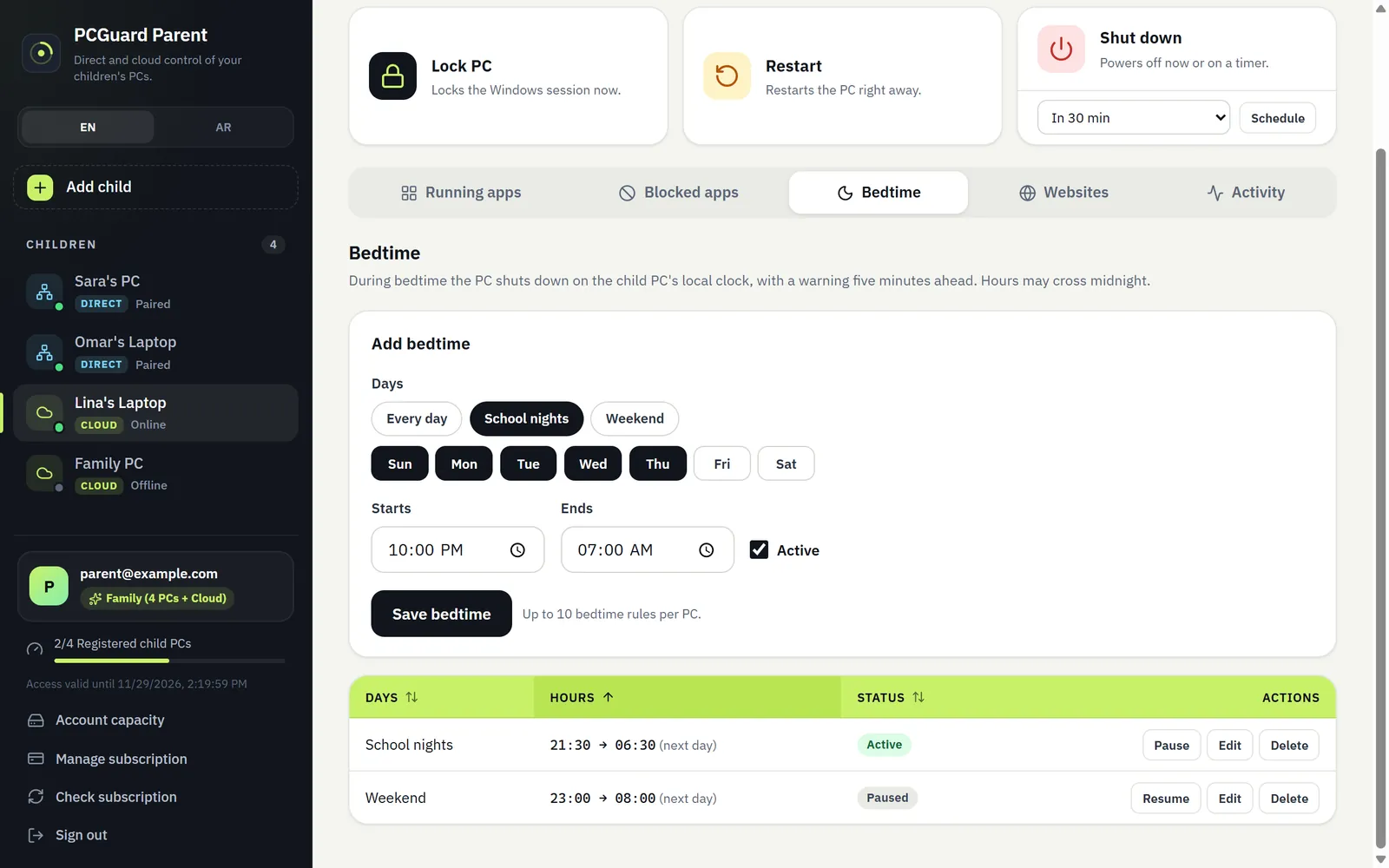
PCGuard Parent for Windows on the Bedtime tab, with a school-night rule from 21:30 to 06:30.

Android phones

PCGuard Parent for Android

Lock the PC from the dinner table. An overview, the apps list, bedtime, websites and activity — all one thumb away.

  • Lock, Restart, Shut down and Timer dock
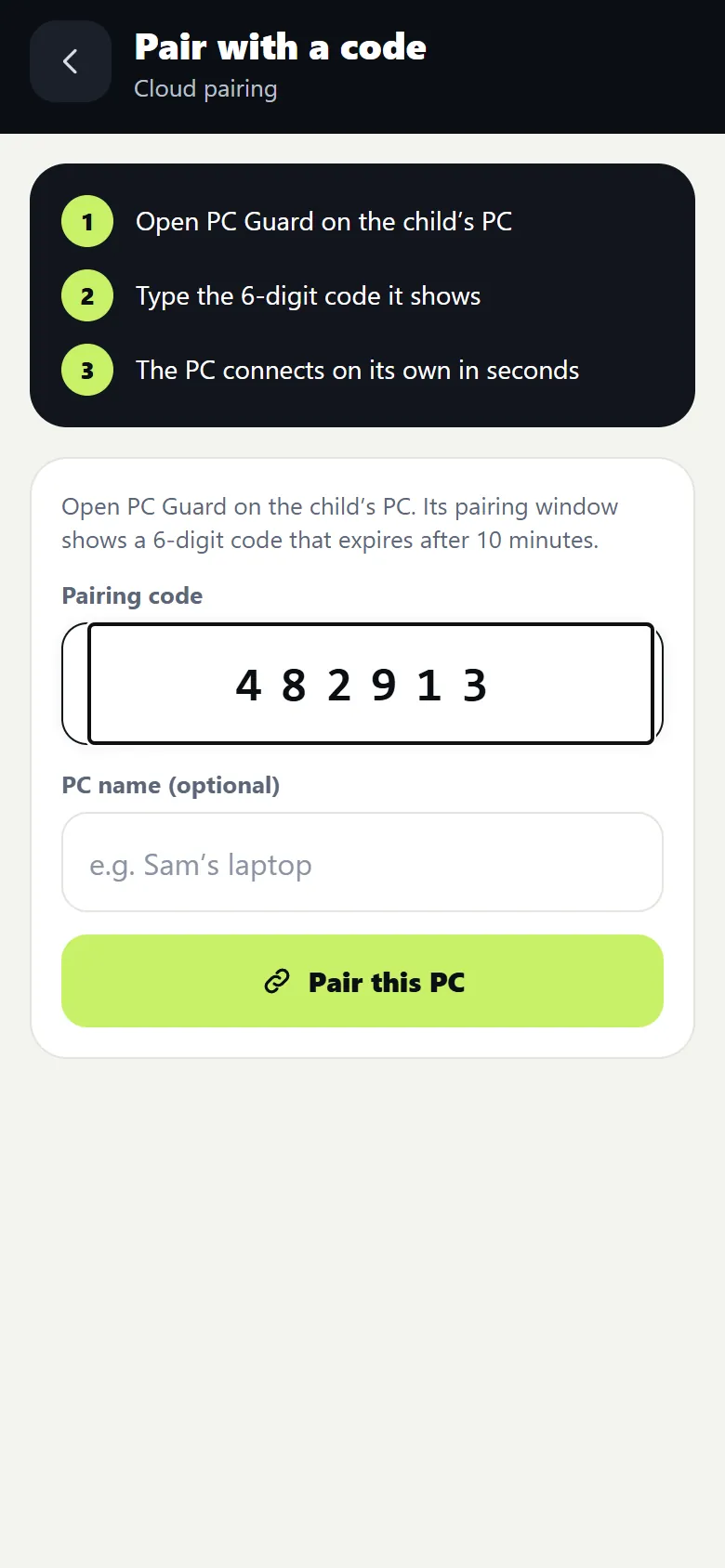
  • Pair a PC with its 6-digit code
  • Credentials kept in Android Keystore
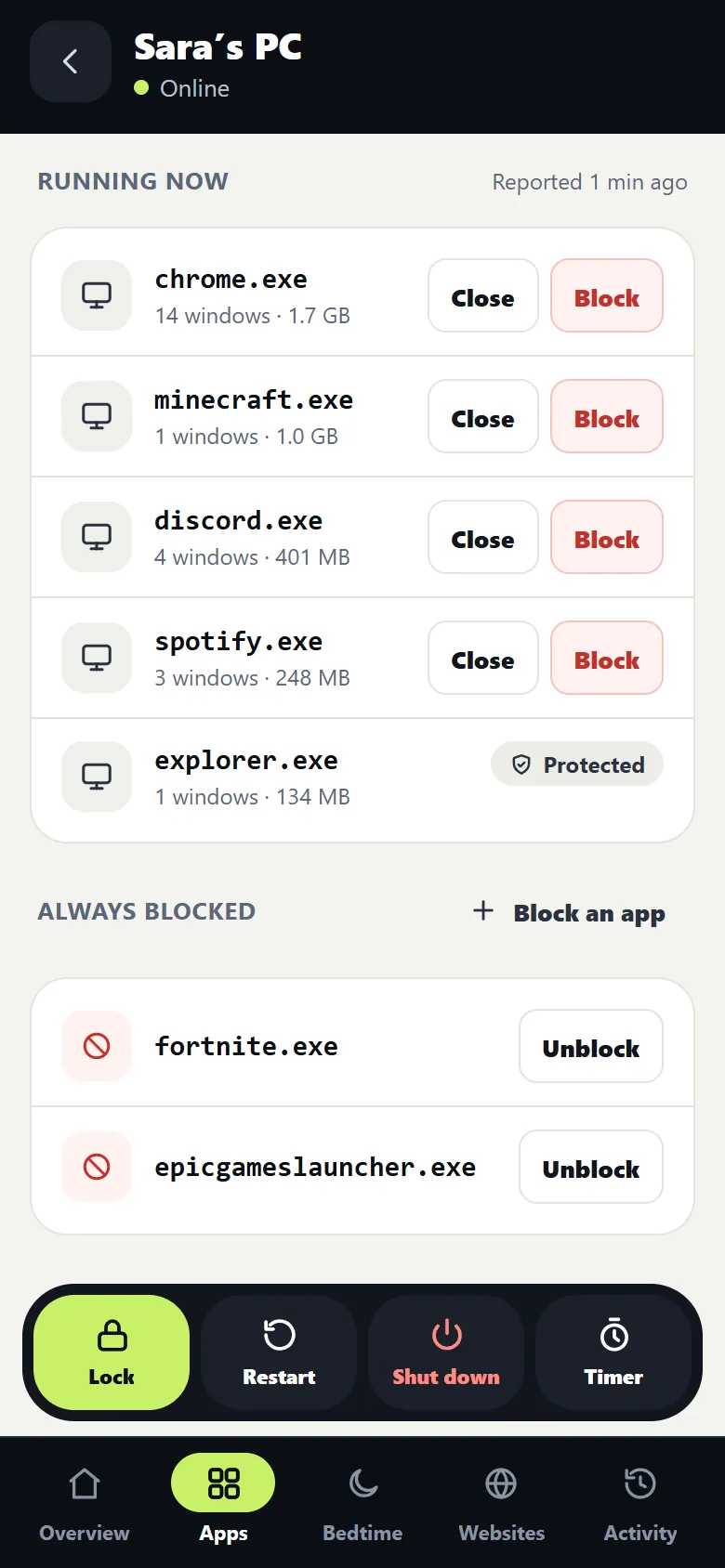
PCGuard Parent for Android on the Apps screen: running apps with Close and Block buttons above the Lock, Restart, Shut down and Timer dock.

Any browser · Cloud plan

Web dashboard

Your family's PCs in one control room. See who is online, what is running, and change rules from any computer.

  • Device list with live status
  • Running apps, Blocked apps, Bedtime, Websites, Activity
  • Subscription and downloads in one account

Installed on the child's Windows PC

PCGuard Child

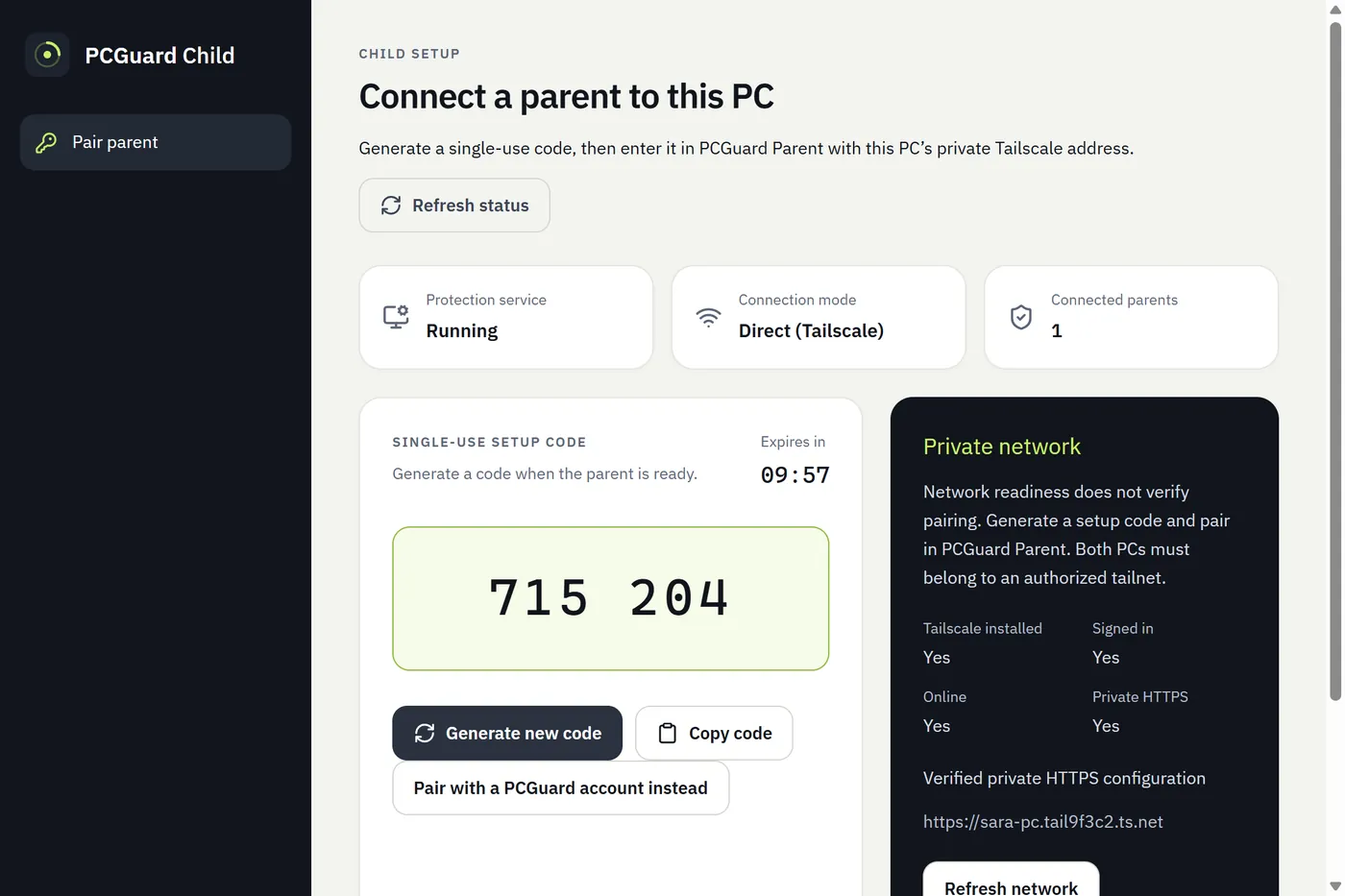
A Windows service that starts with the PC, enforces your rules and reports back. A small window shows the pairing code, then gets out of the way.

  • Runs as a Windows service from boot
  • Enforces blocks and bedtime offline
  • Chrome and Edge extension for website rules
PCGuard Child pairing window in Direct mode with a single-use setup code and the private Tailscale network status.

How it connects

Two ways to connect. You choose.

The child PC always reaches out — nothing to open on your router, no inbound connection to the child.

Cloud modeFamily plan

Cloud: manage from anywhere

Parent apps and the web dashboard talk to the PCGuard cloud. The child PC keeps an outbound connection to it, picks up commands within seconds and reports results back.

Parent
  • Web dashboard
  • Windows app
  • Android app
PCGuard cloudAccounts · rules · audit log
Child PCPCGuard Child service
  • Works from any network
  • Commands usually arrive within seconds
  • Every command and result is logged

Direct modeStarter plan

Direct: private, no cloud in the middle

The Windows and Android parent apps reach the child PC over your own private Tailscale network. Commands and reports go straight between your devices.

Parent
  • Windows app
  • Android app
Your Tailscale networkPrivate, encrypted, yours
Child PCPCGuard Child, Direct mode
  • No PCGuard server sees your commands
  • Usage reports read from the child PC
  • Each parent device gets its own credential

Setup

Paired in four steps.

Install once on the child PC. A six-digit code links it to your account — no network settings, no passwords typed on the child's PC.

  1. Step 1

    Install PCGuard Child

    Run the Windows installer on your child's PC with an administrator account. The protection service starts right away and on every boot.

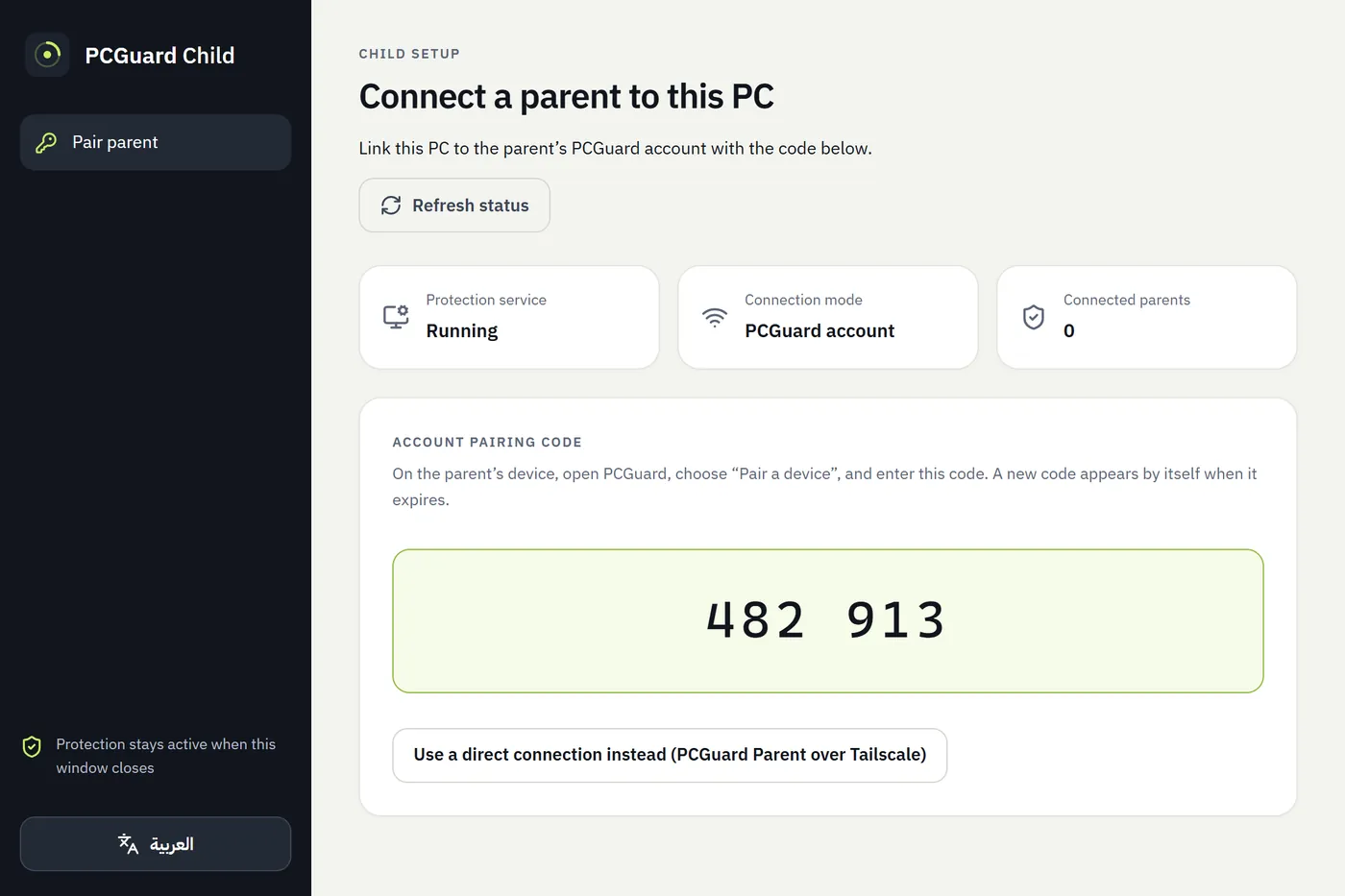
  2. PCGuard Child pairing window showing the service running and the account pairing code 482 913.
    Step 2

    A pairing code appears

    The installer opens the pairing window, which shows a fresh six-digit code. It renews itself when it expires.

  3. Step 3

    Enter the code in a parent app

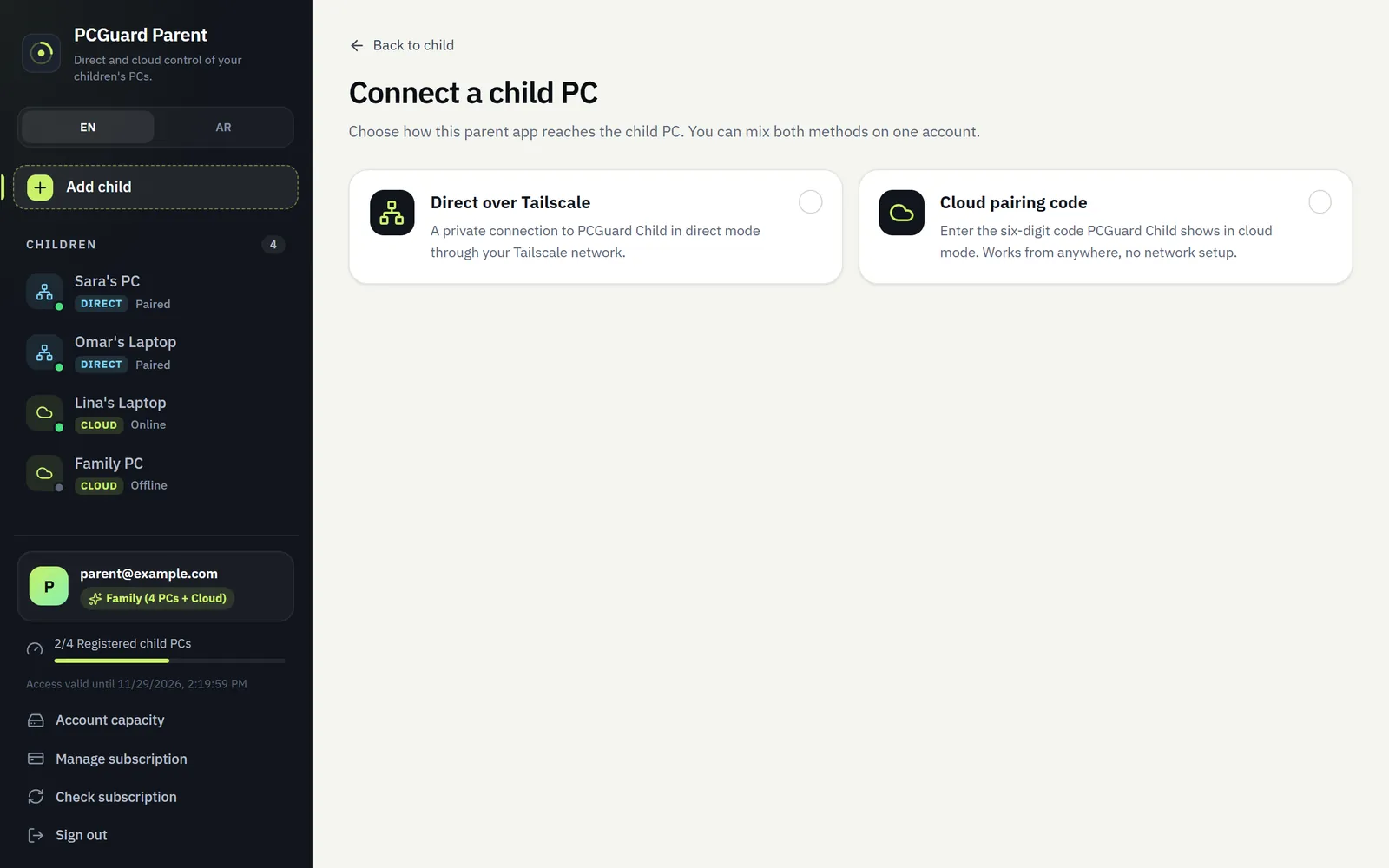
    Choose “Pair a device” in the web dashboard, “Add child” in the Windows app or “Add a PC” on Android, and type the code. The window on the child closes by itself.

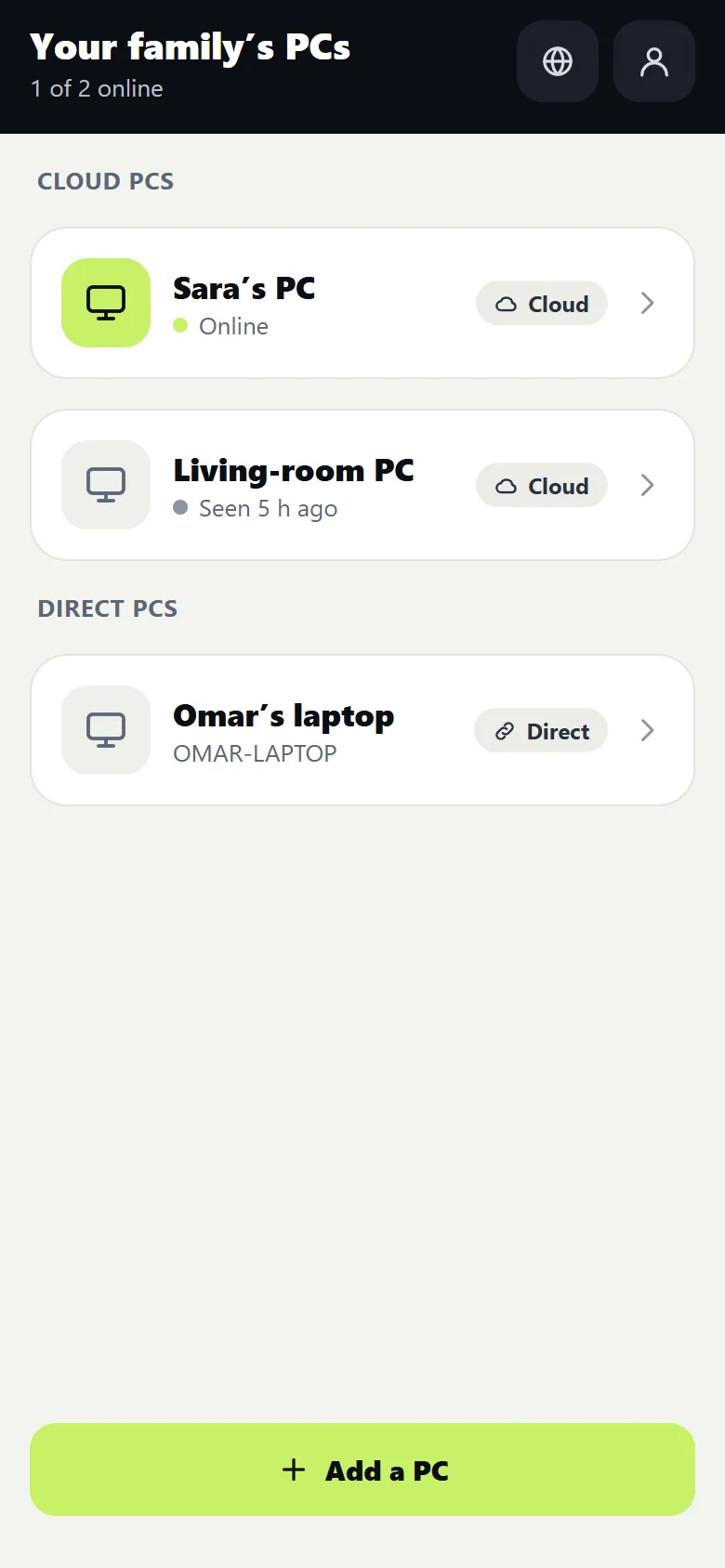
  4. PCGuard Parent for Android listing the family's PCs, with Sara's PC online under Cloud PCs and Omar's laptop under Direct PCs.
    Step 4

    You're in control

    The PC appears online within seconds. Lock it, set bedtime, block apps and websites — the rules are saved on the PC too.

Take the tour

The control room, screen by screen.

Real screens from PCGuard Parent for Windows and Android. Names and numbers are sample data.

See what is running. Close it or block it.

Apps are grouped by program with their window count, memory and icon. Close one now, or block it so it is closed within seconds every time it starts — even while the PC is offline.

  • Renaming the .exe does not escape a block
  • Windows system processes are protected
  • Forced closes show up in Activity
Running apps table in PCGuard Parent for Windows with chrome.exe, minecraft.exe, fortnite.exe marked Blocked, and explorer.exe marked Protected.
PCGuard Parent for Windows
Running apps list in PCGuard Parent for Android with Close and Block buttons and an Always blocked list.
PCGuard Parent for Android

Features

Everything in the box.

No add-ons. Every plan gets the same protection on the child PC; the Family plan adds the cloud.

Instant controls

  • Lock the Windows session now
  • Restart or shut down (Cloud)
  • Timed shutdown from 1 minute to 24 hours, with a 5-minute warning
  • Cancel a planned shutdown

Apps

  • Running apps with icons, windows and memory
  • Close any app remotely
  • Block apps — enforced every few seconds, even offline
  • Protected Windows processes can't be closed or blocked

Bedtime schedules (Cloud)

  • Up to 10 rules per PC, by day of the week
  • Overnight windows across midnight
  • 5-minute warning, then power off
  • Kept by the PC itself, online or not

Websites

  • Block domains and their subdomains
  • Daily time limits per site
  • Daily time and visits per site
  • Chrome and Edge via the PCGuard extension

Screen time (Direct)

  • Total daily screen-time limit
  • Daily limits per app and per site
  • Usage reports read from the child PC

Activity & audit

  • Every command with its result
  • Rule changes and blocked-app closures
  • Append-only history on the server

Two connection modes

  • Cloud: manage from anywhere, web dashboard included
  • Direct: private Tailscale link, no cloud in the middle
  • Mix Cloud and Direct PCs in one parent app

Privacy & security

  • Each PC gets its own device token, handed over once
  • Credentials sealed with Windows DPAPI or Android Keystore
  • The tray icon can never stop the protection service
  • The server, not the PC, is the source of truth

Download

Get PCGuard on every screen.

Installers live in your account, so you always get the current version. Install PCGuard Child first, then a parent app.

  • PCGuard ChildWindows installer (MSI)

    For each child PC. Needs administrator approval once.

    Get the installer
  • PCGuard ParentWindows

    Cloud and Direct children, reports and limits.

    Get for Windows
  • PCGuard ParentAndroid

    Control and pair from your phone.

    Get for Android
  • Web dashboardAny modern browser

    Nothing to install. Included with the Family plan.

    Open the dashboard

iOS parent app planned — not available in this beta.

Simple monthly plans

Room for every PC in the family.

Start with one PC or bring the family together. Add extra child PCs to either plan from your account, without buying a second subscription.

Starter Direct

A simple start for one child PC.

$2.99 / month

1 child PC in your account

  • Windows and Android Parent apps
  • Private connections with Tailscale
  • App and website controls
  • Usage reports from the child PC
1 included. Add more whenever you need.
Create account

Family Cloud

Cloud included

More PCs. Cloud access included.

$6.99 / month

4 child PCs in your account

  • Everything in Starter
  • Cloud browser dashboard included
  • Restart, shutdown and bedtime schedules
  • One subscription for your family
4 included. Add more whenever you need.
Create account

Proposed beta prices in USD, billed monthly. Choose your device count in your account. Your Parent phone and laptop do not use child-PC slots. Stripe shows the final total, taxes, and any mid-month adjustment before confirmation.

FAQ

A few things you might be wondering.

From pairing your first PC to choosing a plan, here's what to expect.

What platforms are supported today?

PCGuard Child runs on Windows. Parents can use the web dashboard (Cloud), PCGuard Parent for Windows, or PCGuard Parent for Android. An iOS parent app is planned but not available in this beta.

What is the difference between Cloud and Direct?

In Cloud mode the child PC keeps an outbound connection to the PCGuard cloud, so you can manage it from anywhere — including the web dashboard. In Direct mode the Windows or Android parent app talks to the child PC over your own private Tailscale network, with no PCGuard server in the middle. One parent app can hold both kinds of PC.

What data leaves the child PC?

In Cloud mode the PC sends its online status, the list of running programs, command results, and daily website totals (site name, time and visits) so you can see them in the dashboard. It never sends full web addresses, page content or keystrokes. In Direct mode, usage reports are read straight from the child PC over your Tailscale network.

Do rules work when the PC is offline?

Yes. Blocked apps, bedtime and website rules are saved on the child PC and enforced there. Commands such as lock or restart need the PC to be online; they are rejected — and shown as rejected — when it is not.

How do website rules work?

Website blocking and limits use the PCGuard browser extension in Chrome and Edge on the child PC, which counts only site names. During the beta the extension is added to the browser by hand; other browsers are not covered.

What happens if my subscription lapses?

Parent sign-in and remote control require an active paid subscription. Scheduled rules, blocking, and enforcement that already live on the child PC continue locally; you will not be able to manage devices from parent apps until billing is restored.

Can I buy more device slots later?

Yes. Choose the extra child-PC slots you need in your account, review the recurring total in Stripe, and confirm. Managing the same child PC from several parent apps counts as one device. Your own phone and laptop never use a slot.

Is PCGuard production-ready?

PCGuard is in public beta. Setup and device compatibility are still being tested before a wider release. PCGuard makes getting around rules harder, not impossible: a child with an administrator account on the PC can still change system settings.

Public beta access

Your family. Your boundaries.

One account brings your Parent apps and subscription together. Choose a plan and manage your payments securely through Stripe.

Create accountManage subscription

Local child protection keeps running on the PC even when parent apps cannot sign in. Windows child agent · Web, Windows or Android parent · iOS parent app planned later.